STEP BY STEP GUIDE TO SETTING YOUR TRADING ACCOUNT UP
Kojo Forex
Author

A Step-by-Step Guide for Beginners
If you're looking to start trading forex but don't know where to begin, this guide will walk you through the entire process.
Simply follow each step in order, and within a few minutes you'll have everything you need to begin your trading journey.
Step 1: Open an Exness Account
The first thing you need is a forex broker.
I personally recommend Exness because of its instant deposit and withdrawals, competitive trading conditions, beginner-friendly platform, and reliable trading environment.
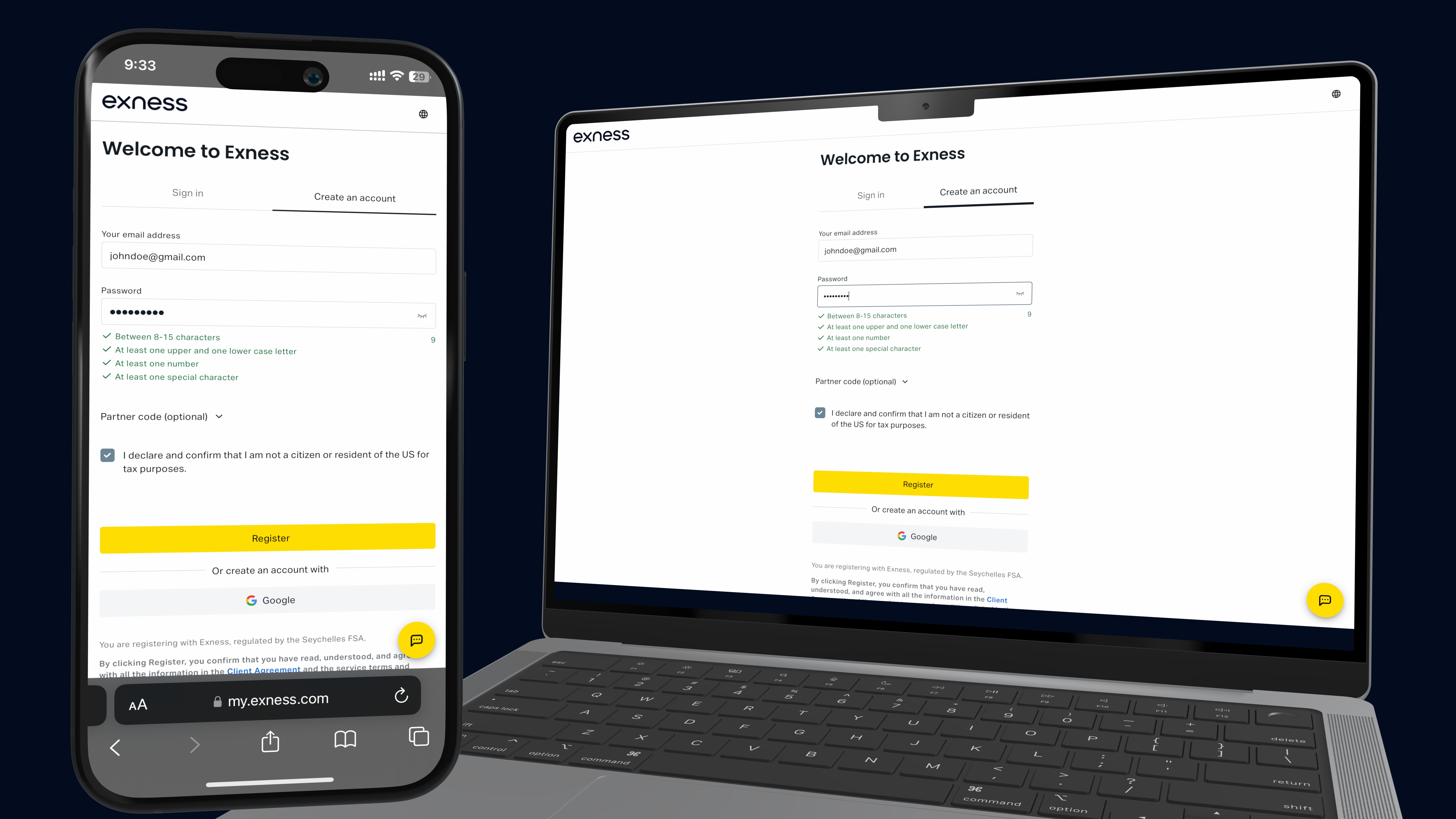
Click here to create your Exness account or click on the link below.
Simply register using your email address, create your password, and complete the registration process.
Once you've successfully created your account, you're ready for the next step.
 Step 2: Create Your Real Trading Account
Now that you've successfully created your Exness account, it's time to create your Real Trading Account.
This is the account you'll use to trade with real money.
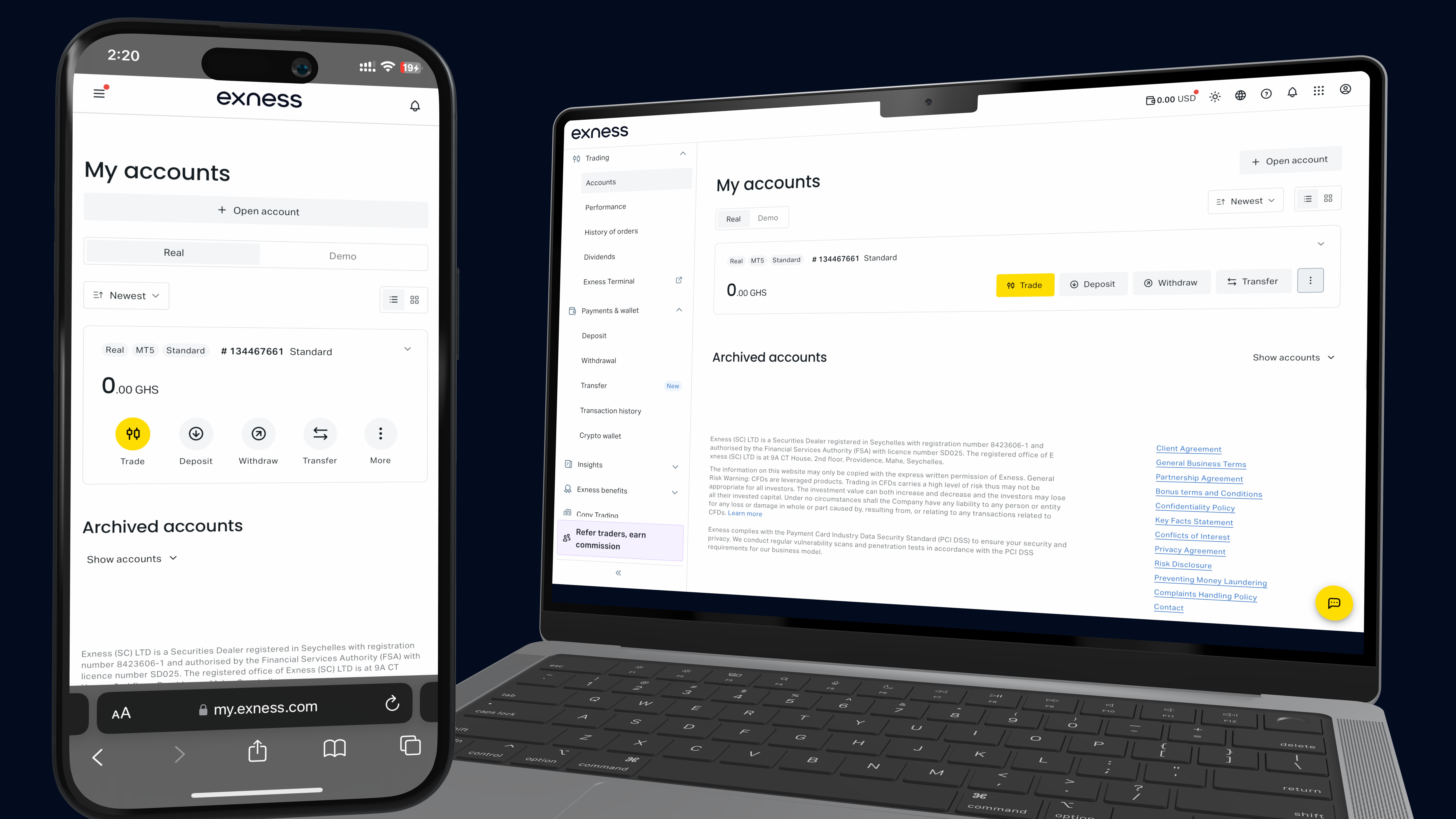
Now let’s navigate to your Exness Personal Area.
After logging into your Exness Personal Area, click "Open New Account."
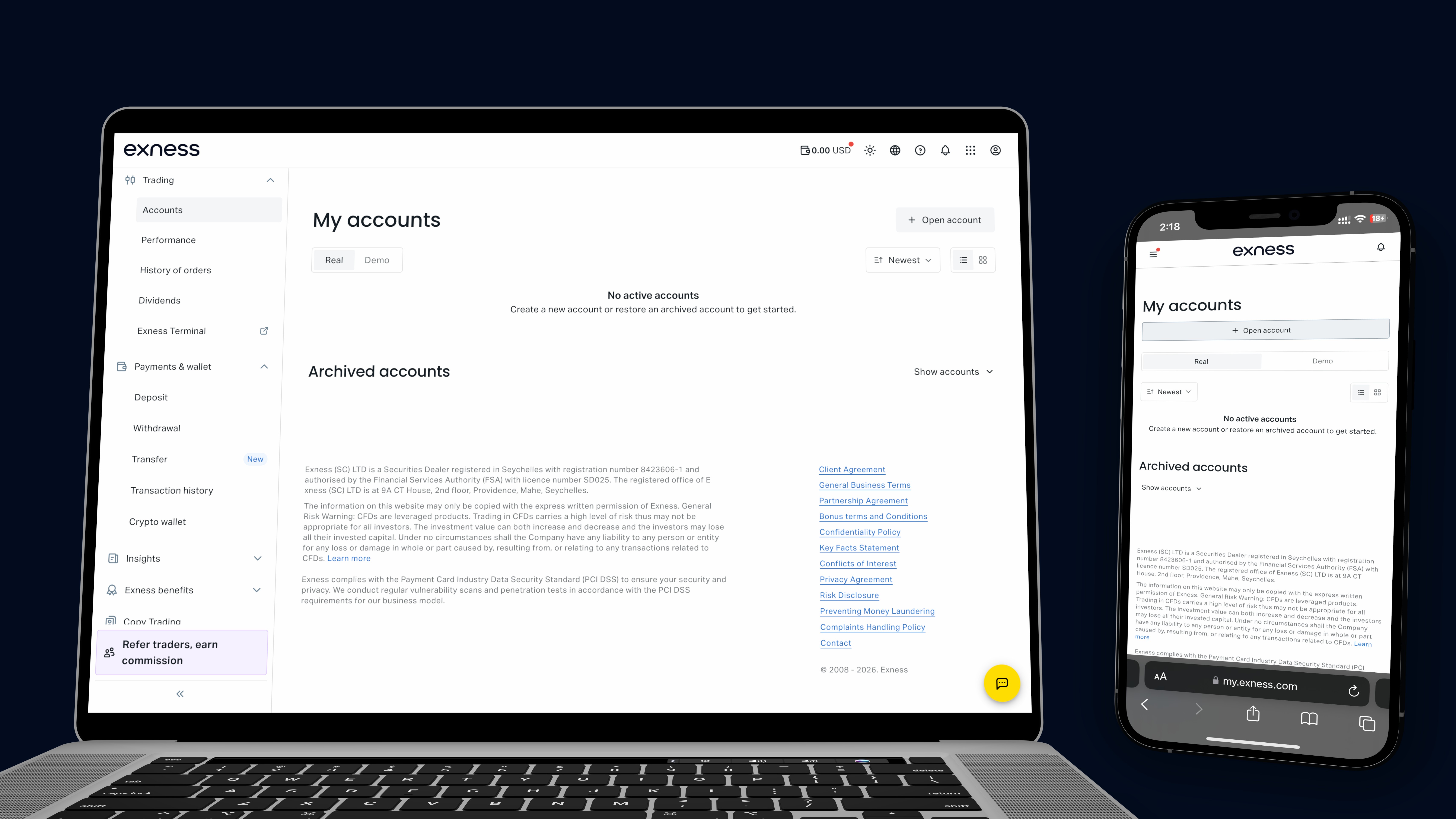 You'll notice that Exness gives you two options:
Real Account
Demo Account
For this guide, make sure you select Real Account.
A demo account is useful for practice, but it doesn't allow you to trade with real money or withdraw profits. Since we're setting up your live trading account, always choose Real Account.
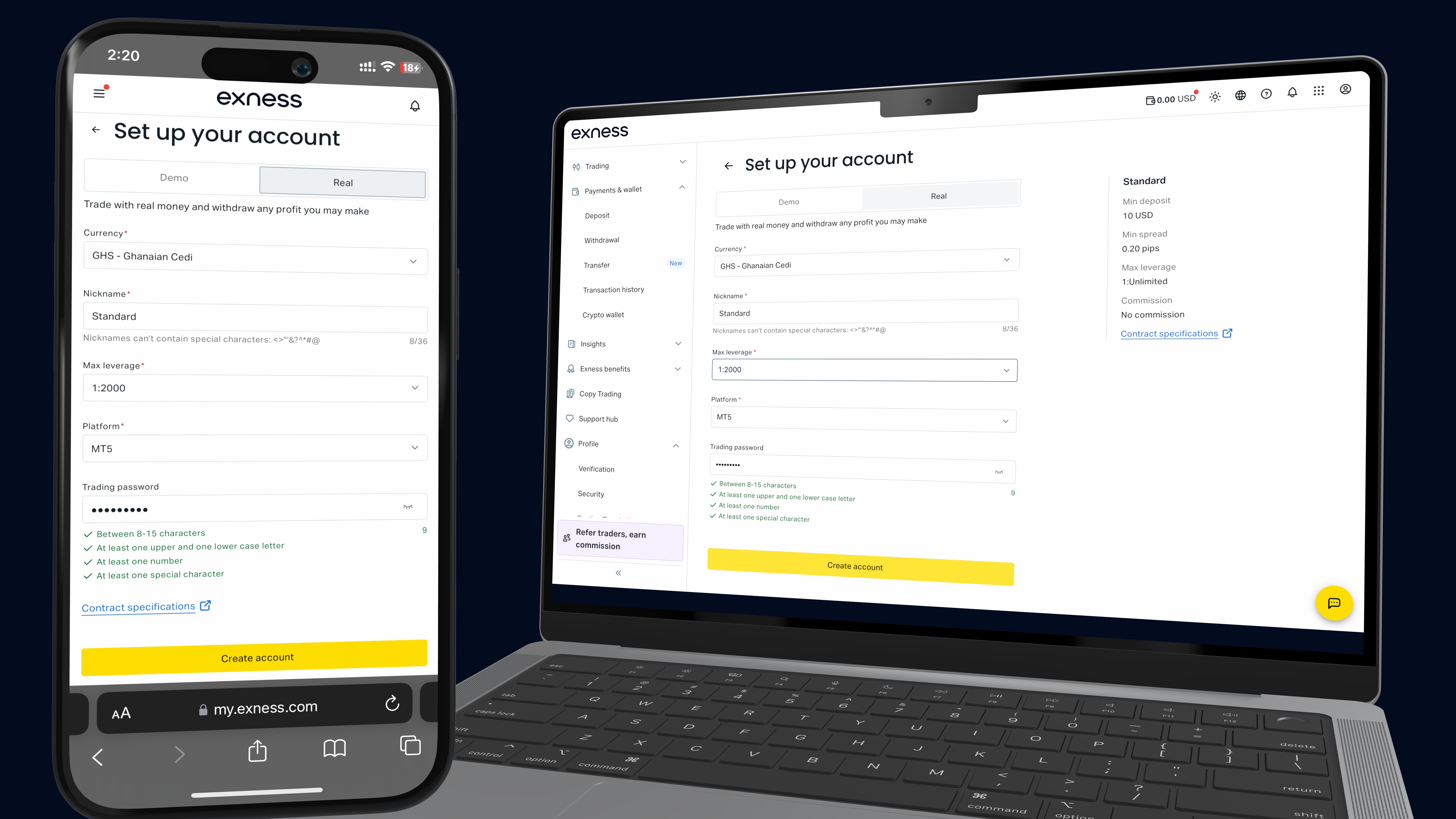 After selecting your account type, move on to the next step.
Choose Your Account Currency
Select the currency you want your trading account to use.
You can choose your local currency or any other supported currency. Pick the one you're most comfortable with.
Important: Once your account has been created, you cannot change its currency, so choose carefully.
Choose Your Leverage
Next, choose your preferred leverage.
Leverage determines how much buying power you have when trading.
Remember, higher leverage increases both potential profits and potential losses, so always use it responsibly.
Create Your Trading Password
You'll now be asked to create a trading password.
This is not the same as the password you use to log into your Exness Personal Area.
Your trading password will be used later when logging into MetaTrader 5 (MT5) or MetaTrader 4 (MT4), so choose a strong password and store it somewhere safe.
Finally, click Create Account.
 Step 3: Verify and Fund Your Account
Now that you've successfully created your Real Trading Account, the next step is to verify your Exness account.
Verification helps protect your account and allows you to deposit, withdraw, and trade without unnecessary restrictions.
Inside your Exness Personal Area, you'll be prompted to verify your identity.
Simply upload the required documents and follow the instructions on your screen.
Once your account has been verified, it's time to fund it.
One of the things I like most about Exness is the variety of payment methods available.
Depending on your country, you can fund your account using:
Mobile Money
Visa or Mastercard
Online Banking
Cryptocurrency
Local Payment Methods
Electronic Wallets
And several other convenient payment options
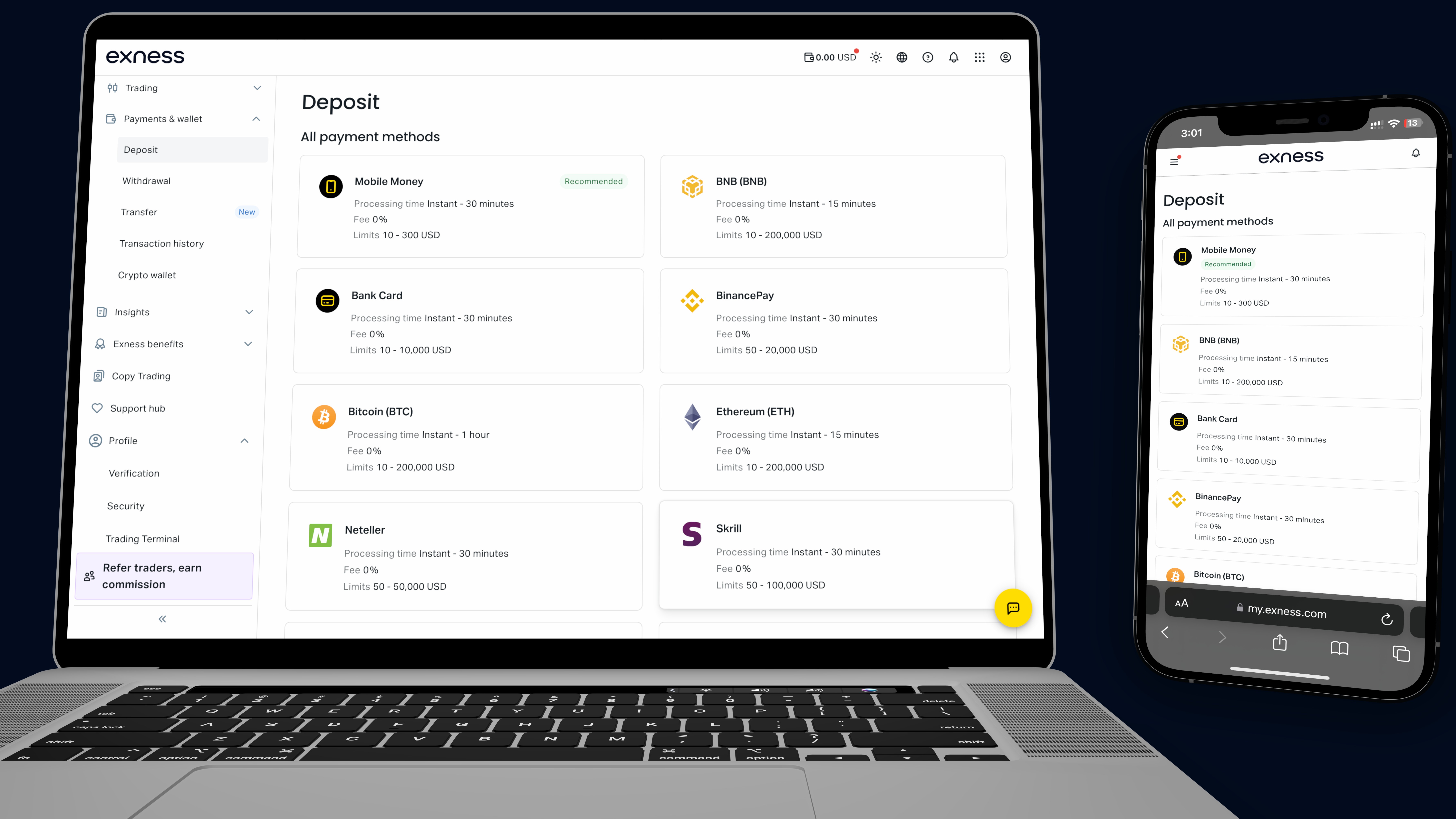 Simply choose the payment method that's most convenient for you, enter the amount you wish to deposit, and complete the transaction.
I recommend starting with at least $100, but only trade with money you can comfortably afford to risk.
Once your deposit reflects in your trading account, you're ready for the next step.
Step 4: Download MetaTrader 5 (MT5)
Now that your trading account has been funded, you'll need a trading platform.
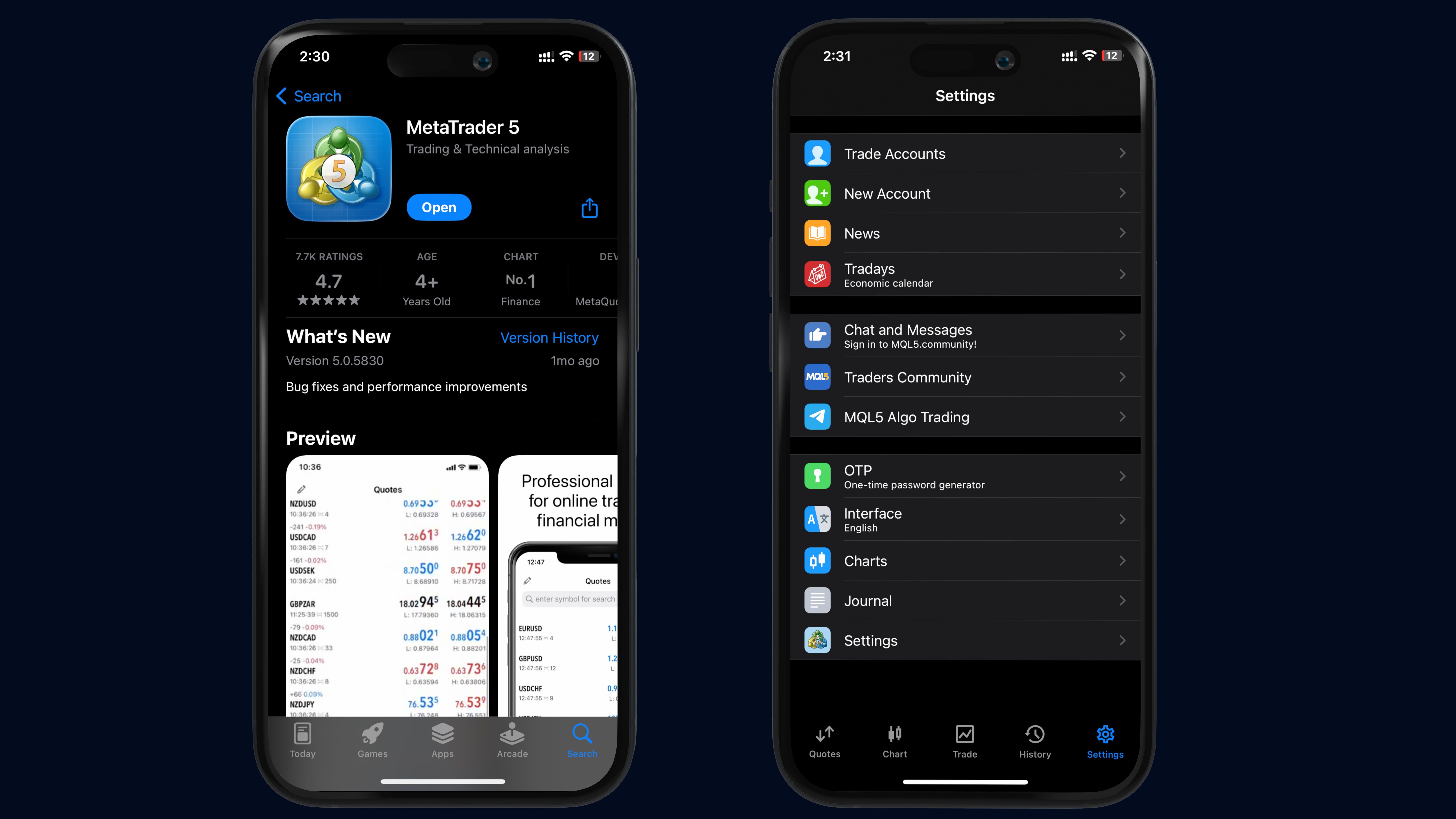
For this guide, we'll be using MetaTrader 5 (MT5), one of the most popular trading platforms in the world.
Depending on the device you're using, download MT5 using the appropriate link.
MT5 is available on both Apple and Android devices.
Download and install the application on your device.
Once the installation is complete, open the application.
 Step 5: Log Into Your MT5 Trading Account
Now go back to your Exness Personal Area.
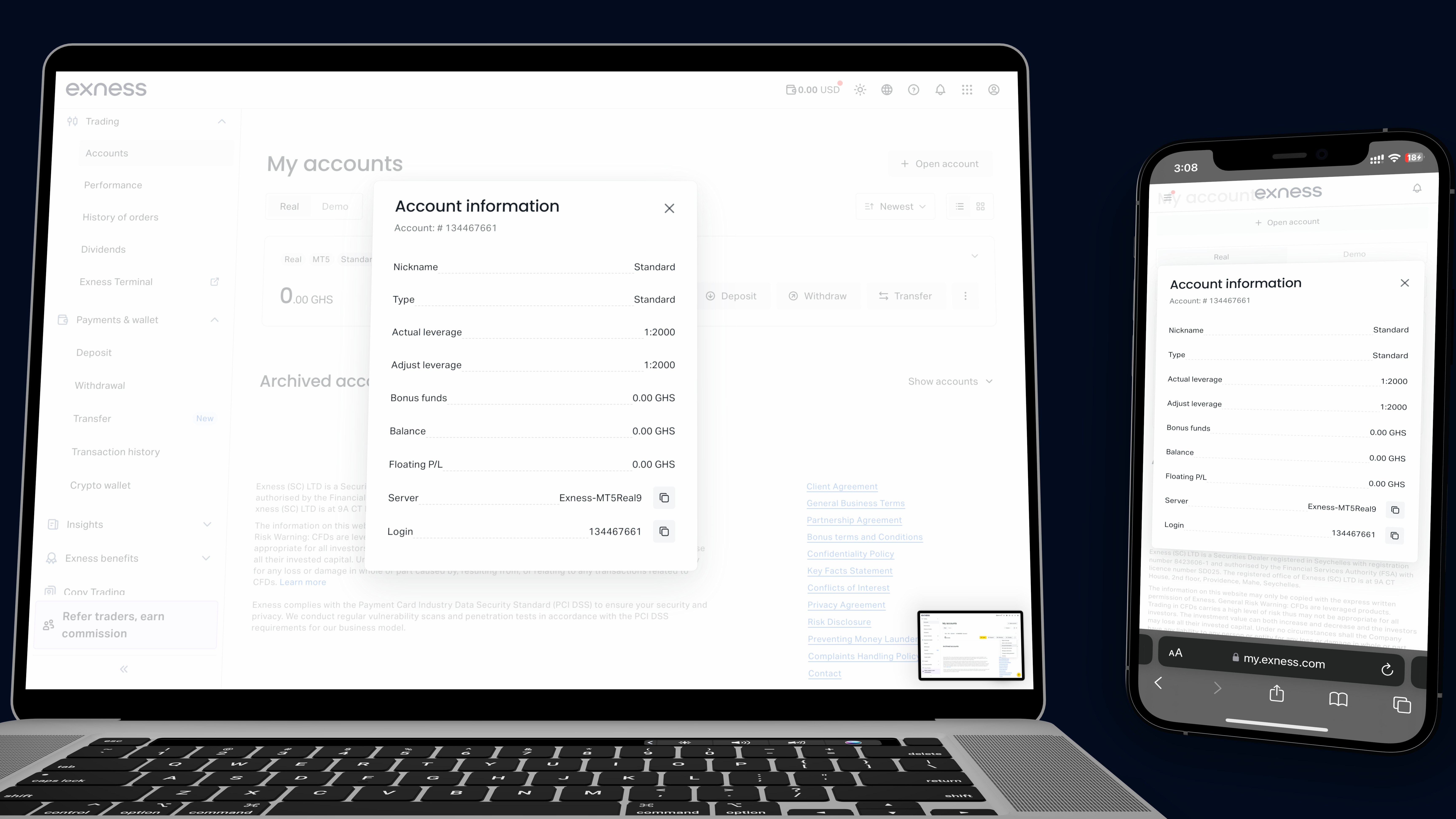
Locate the Real Trading Account you created earlier and click on the ellipses button next to it.
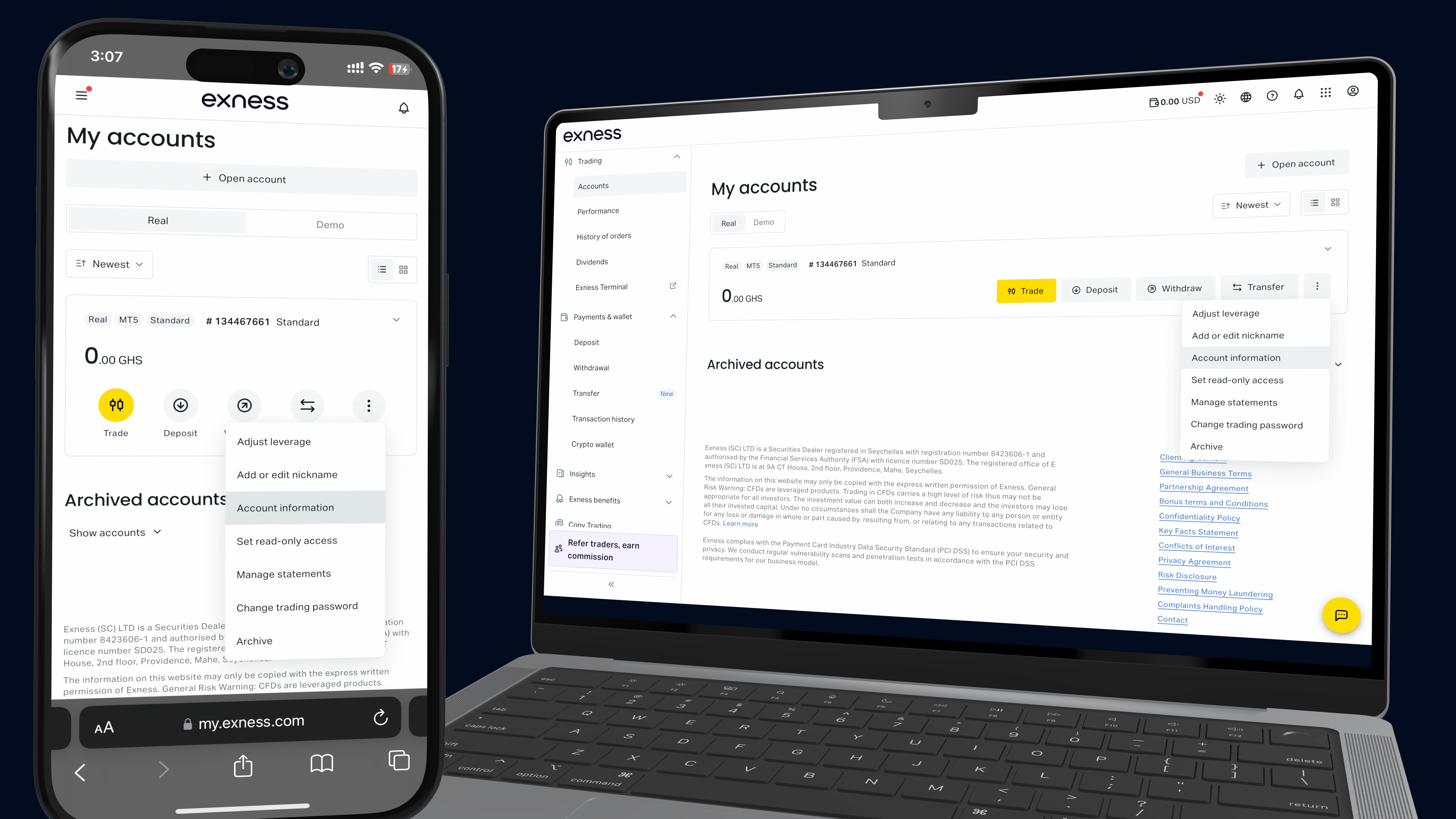 Click on Account Information, and you'll find the following details amongst the list:
Your MT5 Account Number (Login ID)
Your Trading Password
Your Trading Server
 Return to MetaTrader 5.
Click on Settings on the buttom left corner.
Click on Trade Accounts.
Click on the + button at the top right corner.
Search for Exness Technologies Ltd.
Now search for the exact server displayed in your Exness account, in this case mine is Exness-MT5Real9.
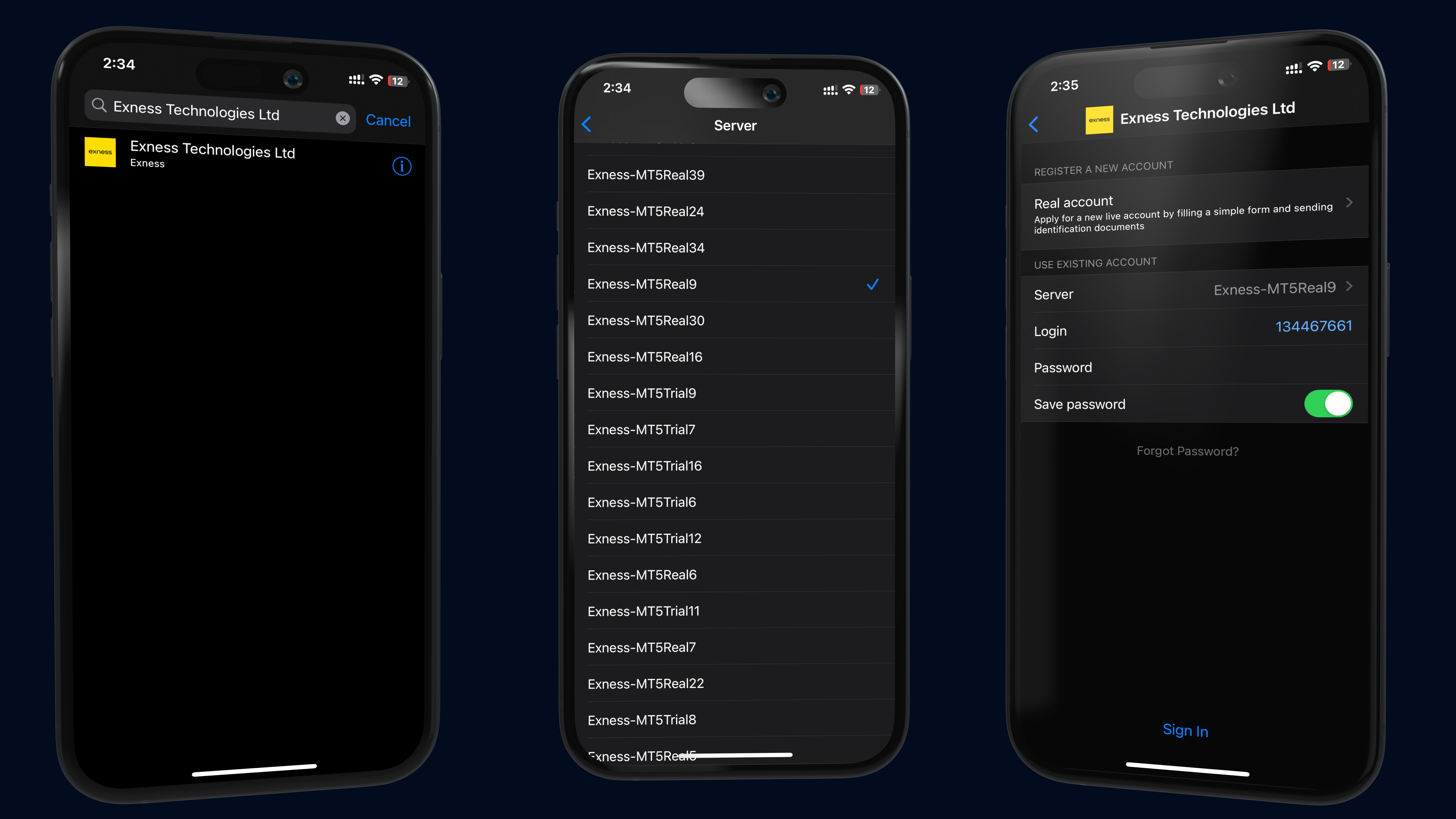 Enter your account number and trading password, then click Log In.
If everything has been entered correctly, you'll immediately see your balance.
Congratulations!
Your trading account is now connected and ready to use.
Step 6: Join the KojoForex Community
Congratulations!
If you've followed every step so far, you've successfully opened your broker account, created your Real Trading Account, funded it, downloaded MetaTrader 5, and connected everything successfully.
Now comes the most important step.
Learning.
By creating your Exness account through KojoForex, you gain access to exclusive beginner resources designed to help you become a profitable trader much faster.
Simply click here to access your free resources, including:
The Free Beginner Forex Course
VIP Forex Signals
The KojoForex Telegram Community
Market Analysis
Educational Resources
Trading Updates
Exclusive Community Benefits
I highly recommend completing the Free Beginner Forex Course before placing your first trade.
It will help you understand how the forex market works, avoid common beginner mistakes, and build a solid foundation for your trading journey.
Remember...
Opening a trading account is easy.
Learning how to trade consistently is what changes your life.
Welcome to the KojoForex community, and I wish you all the best on your trading journey.